

How to Schedule TikTok Posts using TikTok’s Native Scheduler
Luckily, TikTok has a native way to schedule posts, but it’s only available on desktop (TikTok web app)
Here is how you can schedule TikTok posts on TikTok:
Step 1: Log in to TikTok on a Web Browser
Since the scheduling feature is only available on the desktop version of TikTok.
Open your browser, go to TikTok, and log in to your account.
Step 2: Upload Your Video
Click on the Upload button.
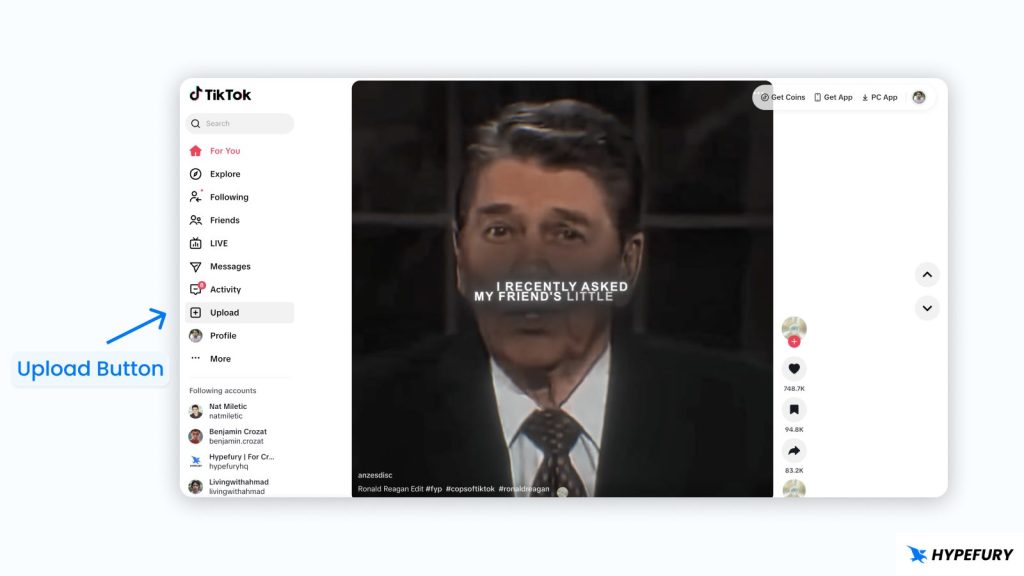
Then, select the video you want to post, just like you would when posting normally.
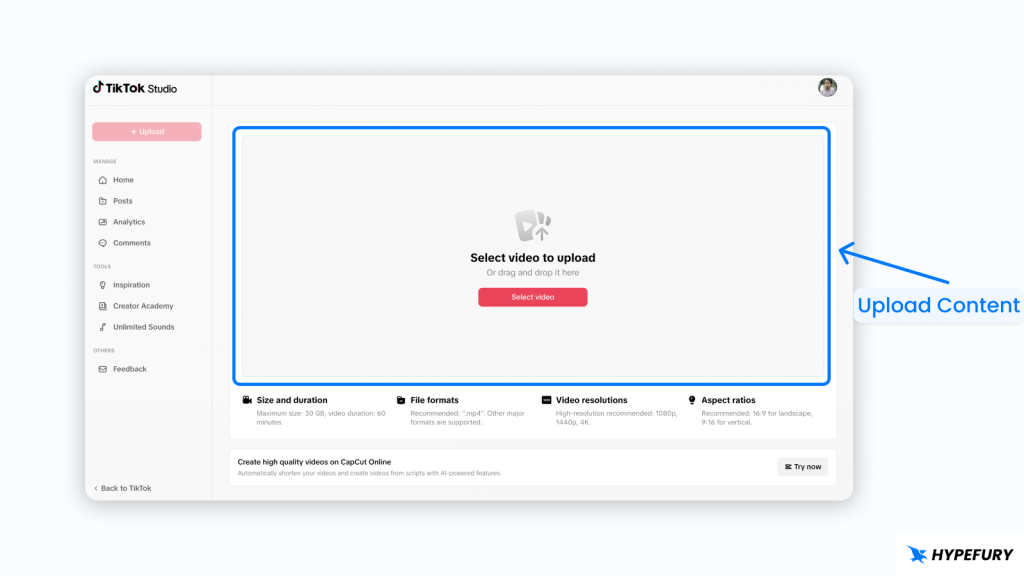
Add a caption/description for your video and hashtags to help you grow on TikTok
Step 3: Schedule Your Post
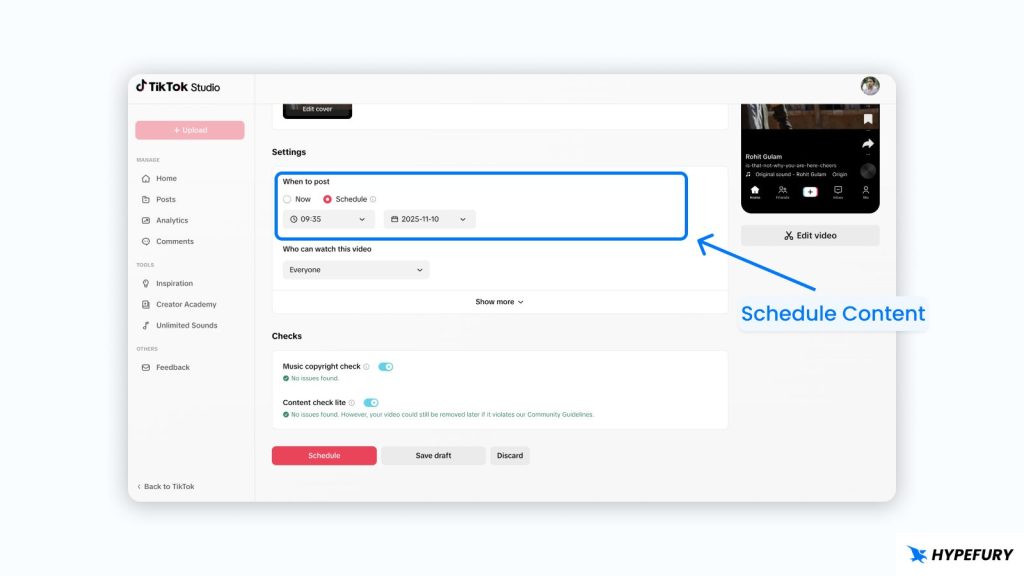
Under Settings, you will see the “When to post ” field. Choose Schedule and choose the day/time you want to post your content.
Keep in mind that TikTok only allows you to schedule up to one month in advance.
Reminder: TikTok does not allow you to edit your scheduled posts. If you forgot anything, you will have to delete the post and start afresh. So double-check before scheduling
How to Delete Scheduled TikTok Posts
Step 1: Go to all your TikTok posts
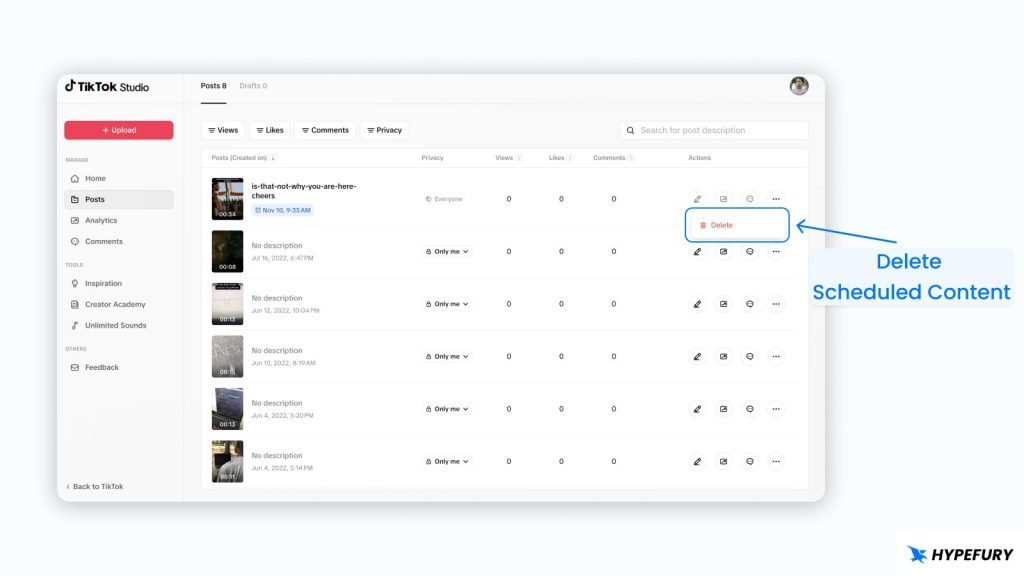
You can do this by going to TikTok Studio and clicking on Posts on the right sidebar
Step 2: Delete your scheduled post
On the posts page, find the post that you want to delete and click on the three dots icon. A dropdown will appear, and you can click on Delete to delete the post
How to Schedule TikTok Posts with Hypefury
Here is how you can schedule TikTok posts using Hypefury:
Step 1: Connect your TikTok account
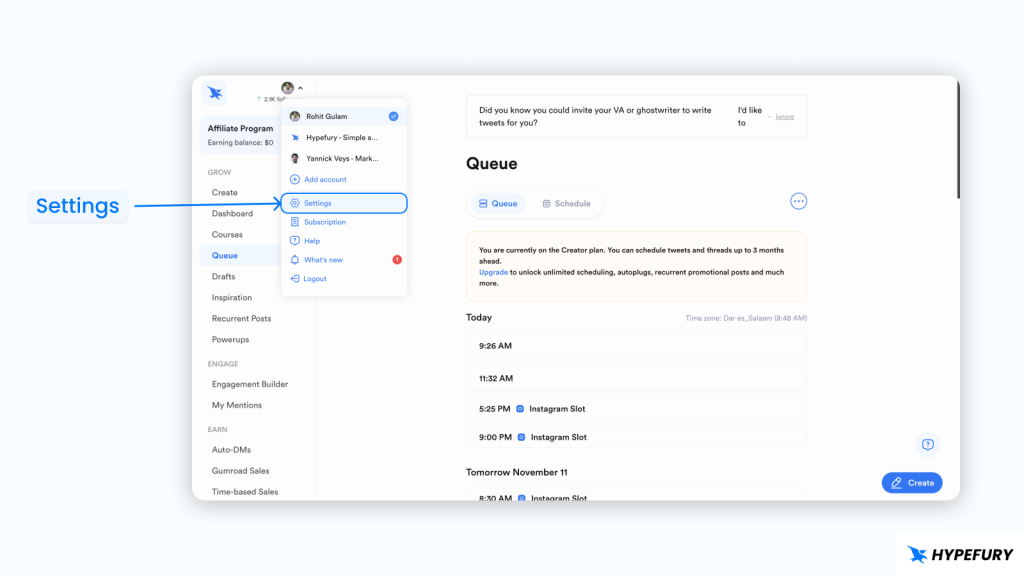
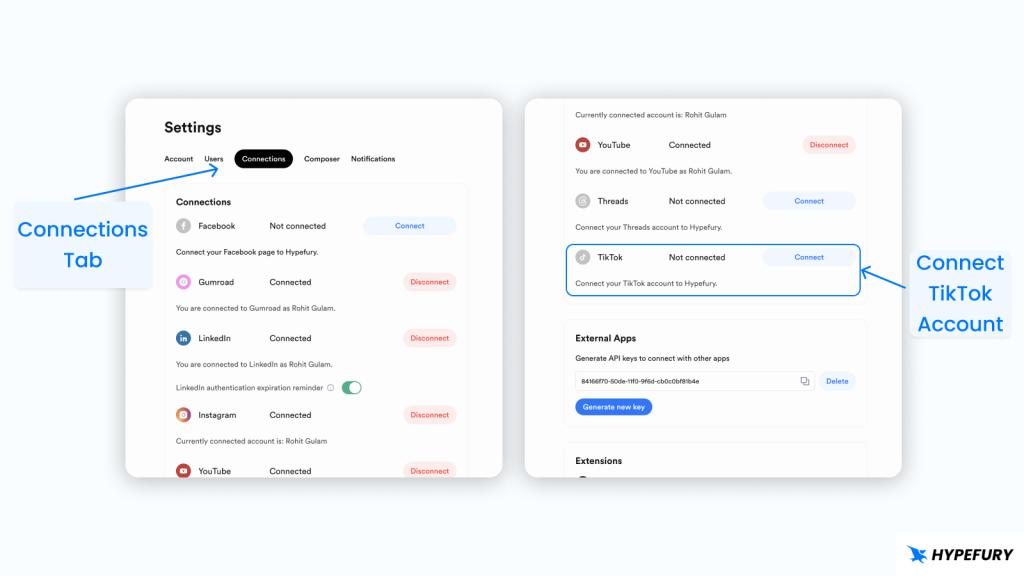
Log in to Hypefury and connect your TikTok account. You can do this by going to Settings, switching to the Connections tab, and connecting your TikTok account.
Step 2: Add TikTok slots to your posting schedule
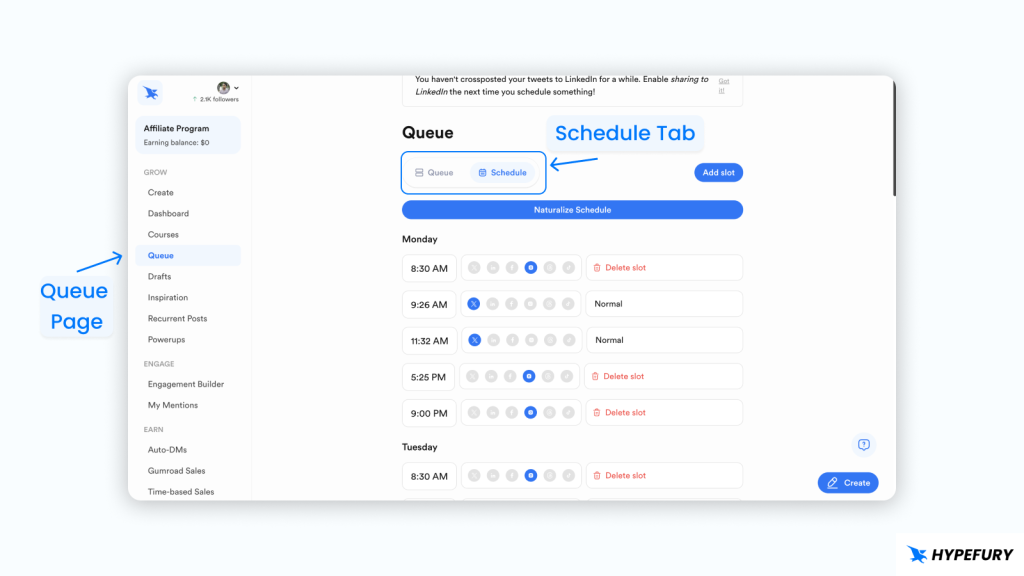
Hypefury allows you to connect multiple social media accounts. And they all share the same schedule, so you don’t get confused. You need to add TikTok slots (when you want to post TikTok content) to your posting schedule so that you can schedule your TikTok content on those times (slots).
You can edit your posting schedule by going to the Queue page and switching to the Schedule tab. Then, you can add new slots and make them TikTok slots, or edit existing ones.
Step 3: Upload your TikTok content
When you return to the queue page, you will find the TikTok slots (the ones you just created). Tap the time you want to post, and the composer will open.
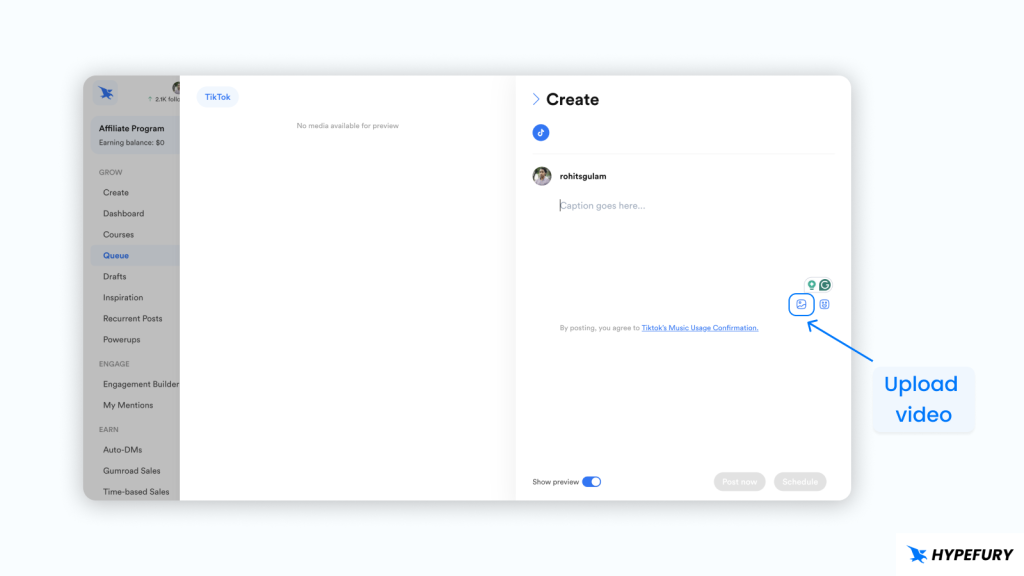
Upload your video, write a description, choose relevant hashtags for TikTok growth, and finally, review the settings you want for your video, such as whether to upload it publicly or privately.
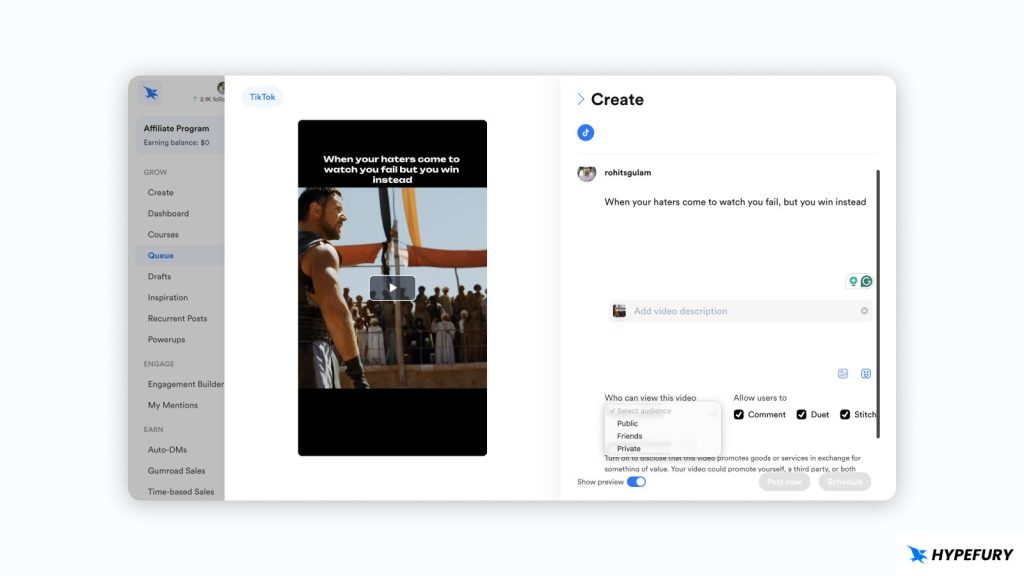
After that, you can click on the Schedule button to schedule your posts. Alternatively, you can click on Post Now to immediately post it.
How to Edit Scheduled TikTok Posts in Hypefury
Unlike the native TikTok scheduler, Hypefury allows you to edit your scheduled posts. Here is how you can do it:
Step 1: Go to the Queue page and find the post that you want to edit
The first thing that you need to do is go to the Queue page and find the post that you want to edit.
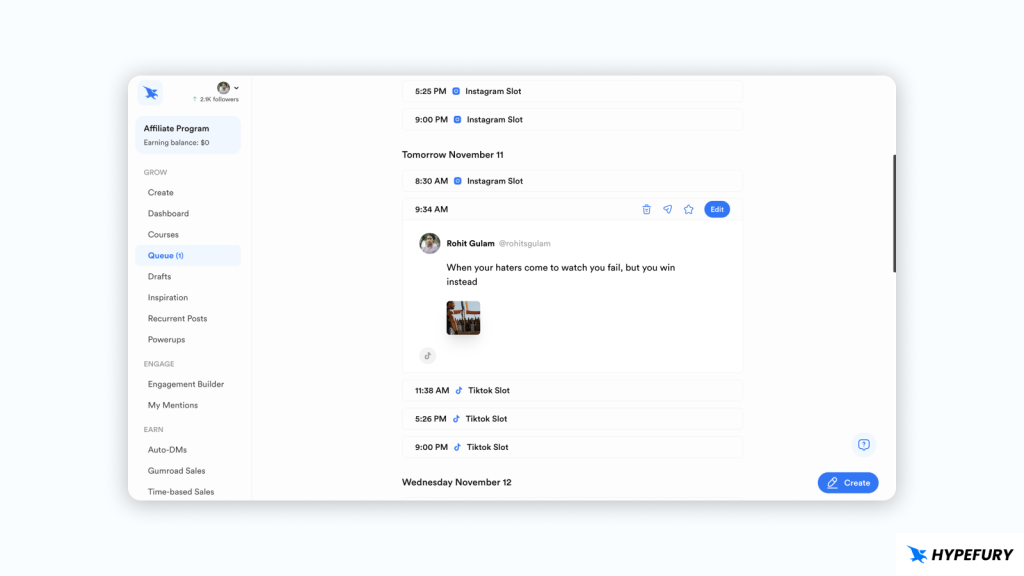
Step 2: Click on the Edit button
Once you find the post that you want to edit, simply click on the Edit button. This will take you back to the composer for you to make changes to your scheduled post.
You can change the post content itself, the description, post settings, or the time you want to schedule the post.
Step 3: Update your post
Once you’re happy with your edits, just click on the Update button to update your scheduled post
