
Steal What’s Working on 𝕏 (Twitter) in 2025

10 high-performing frameworks for each niche which go viral every time! 

Instagram Reposts: How To Repost Posts On Instagram

Instagram Repost

Instagram has added a new feature that allows users to repost other people’s public posts, called “Instagram reposts.”

Instagram now lets you reshare public posts and reels directly to your own feed with a simple click on a new icon ?set=content operations help center&name=instagram reshare shared&density=1 


repost

This feature is currently only available in the US, and it will be rolled out to other countries soon.

What Is Instagram’s New “Repost” Button?

The new “repost” button on Instagram lets you show another “public” post of another user in your feed.

When you repost something, it gets its own “Reposts” tab in your profile next to “Reels” and “Tagged” posts.

instagram reposts

Just remember, only content from public accounts can be reposted; private content stays private.

Additionally, you can only repost if the creator has allowed it.

How to Repost on Instagram

This is how you can repost a post on Instagram:

1. Find any public post or Reel you want to share.

With the new Instagram feature kicking in, it’s now easier to repost an Instagram post and it can be saved on your feed.

2. Tap the Repost button under it.

So, when you see a public post or reel click the ?set=content operations help center&name=instagram reshare shared&density=1 button to repost that content. 

3. To add your own text, tap the small bubble near your profile picture at the bottom.

Instagram lets you add your own text on the repost to hear what’s your idea or what you have to share about that post that you chose repost.

4. Write what you want to say, then tap Add.

You can write whatever you want to say about that post, but if you just wanted to repost it to be there, that’s okay too, you can just leave it as it is.

5. The repost will appear in the Reposts section of your profile.

Finally, in your profile section, inside the repost section marked as ?set=content operations help center&name=instagram reshare shared&density=1 will be used to save all your reposts, so feel free to visit whenever you feel like it. 

Note:

  • You can only repost if the creator allows it.

  • You can’t repost something that’s already a repost.

How to Remove a Repost

  1. Go to the post or Reel you reposted.

  2. Tap the Repost button again.

  3. It will disappear from your profile.

How to See Your Reposts

  1. Open the Instagram app.

  2. Tap your profile section (or picture) at the bottom.

  3. Tap the Reposts tab (next to Reels and Tagged).

How to Allow or Stop Others From Reposting Your Content

  1. Go to your profile.

  2. Tap the Menu (☰ button on the top right).

  3. Select Sharing (under “How others can interact with you”).

  4. Use the toggle switch next to Allow reposts to turn it on or off.

Final Thoughts

Instagram’s new repost feature makes resharing content so much easier just like how other similar social media’s are.

You can even use the repost feature to support fellow businesses and other products that other companies provide, support friends, or even let other people see what you’re interested in.

Ready to Grow Your Audience
& Make Money on Social?

Hypefury makes it easy to create, publish and monetize your content across social media 

Join 3,500+ creators who are using Hypefury to earn online

Grow your audience on social media with Hypefury

Works with

Hypefury makes it easy to grow on on social media by proving you with the features that make it easy to create, distribute and monetize your content

Join 3,500+ creators who are using Hypefury to earn online

Instagram Reposts: How To Repost Posts On Instagram

Instagram Repost

Instagram has added a new feature that allows users to repost other people’s public posts, called “Instagram reposts.”

Instagram now lets you reshare public posts and reels directly to your own feed with a simple click on a new icon ?set=content operations help center&name=instagram reshare shared&density=1 

 

repost

This feature is currently only available in the US, and it will be rolled out to other countries soon.

What Is Instagram’s New “Repost” Button?

The new “repost” button on Instagram lets you show another “public” post of another user in your feed.

When you repost something, it gets its own “Reposts” tab in your profile next to “Reels” and “Tagged” posts.
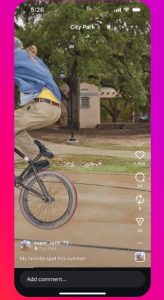
instagram reposts

Just remember, only content from public accounts can be reposted; private content stays private.

Additionally, you can only repost if the creator has allowed it.

How to Repost on Instagram

This is how you can repost a post on Instagram:

1. Find any public post or Reel you want to share.

With the new Instagram feature kicking in, it’s now easier to repost an Instagram post and it can be saved on your feed.

2. Tap the Repost button under it.

So, when you see a public post or reel click the ?set=content operations help center&name=instagram reshare shared&density=1 button to repost that content. 

3. To add your own text, tap the small bubble near your profile picture at the bottom.

Instagram lets you add your own text on the repost to hear what’s your idea or what you have to share about that post that you chose repost.

4. Write what you want to say, then tap Add.

You can write whatever you want to say about that post, but if you just wanted to repost it to be there, that’s okay too, you can just leave it as it is.

5. The repost will appear in the Reposts section of your profile.

Finally, in your profile section, inside the repost section marked as ?set=content operations help center&name=instagram reshare shared&density=1 will be used to save all your reposts, so feel free to visit whenever you feel like it. 

Note:

  • You can only repost if the creator allows it.

  • You can’t repost something that’s already a repost.

How to Remove a Repost

  1. Go to the post or Reel you reposted.

  2. Tap the Repost button again.

  3. It will disappear from your profile.

How to See Your Reposts

  1. Open the Instagram app.

  2. Tap your profile section (or picture) at the bottom.

  3. Tap the Reposts tab (next to Reels and Tagged).

How to Allow or Stop Others From Reposting Your Content

  1. Go to your profile.

  2. Tap the Menu (☰ button on the top right).

  3. Select Sharing (under “How others can interact with you”).

  4. Use the toggle switch next to Allow reposts to turn it on or off.

Final Thoughts

Instagram’s new repost feature makes resharing content so much easier just like how other similar social media’s are.

You can even use the repost feature to support fellow businesses and other products that other companies provide, support friends, or even let other people see what you’re interested in.

Ready to Grow Your Audience
& Make Money on Social?

Hypefury makes it easy to create, publish

and monetize your content across social media 

Join 3,500+ creators who are using HypeFury to earn online

You might also like

We won’t send you spam. Unsubscribe at any time