What is a LinkedIn Company Page?
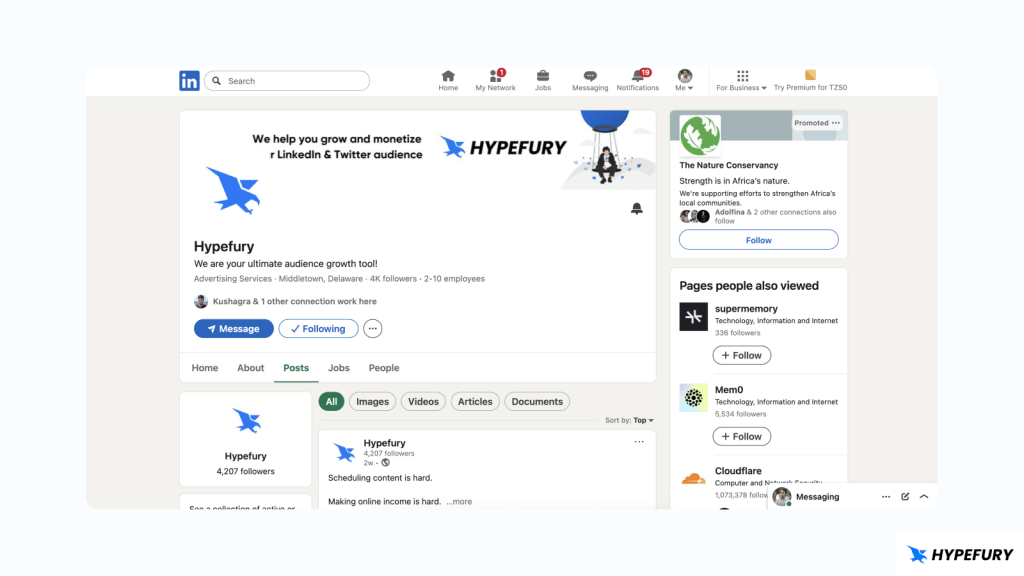
A LinkedIn company page is a type of LinkedIn page that explicitly represents a company or an organization on LinkedIn. It’s separate from the founder and its employees, and it serves as a digital presence for the business. A company page allows one to share the latest news, updates, events, and job openings.
A company page is more powerful than an individual page for businesses in the sense that it has more customizable sections, such as Home, About, Products, Posts, Jobs, and People. All these sections allow businesses to express themselves more than individual pages can.
How to Create a LinkedIn Company Page
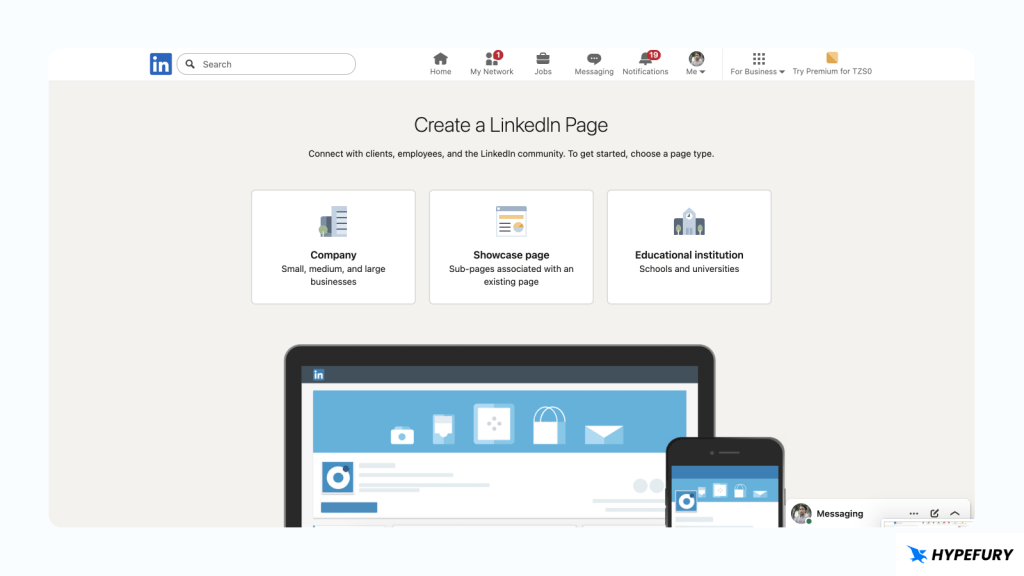
Here is how you can create a LinkedIn company page 1. Log in to your LinkedIn account 2. Click the For Business icon in the upper-right corner of your LinkedIn homepage 3. Click on Create a Company Page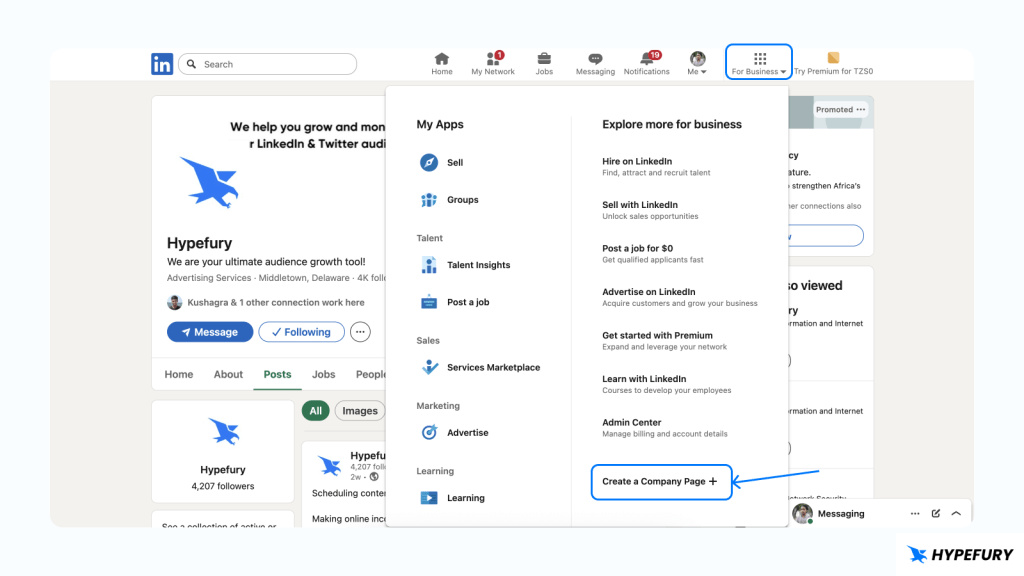 4. Here, you will see an option to choose a page type:
- Company,
- Showcase, or
- Education. Choose the one that you want
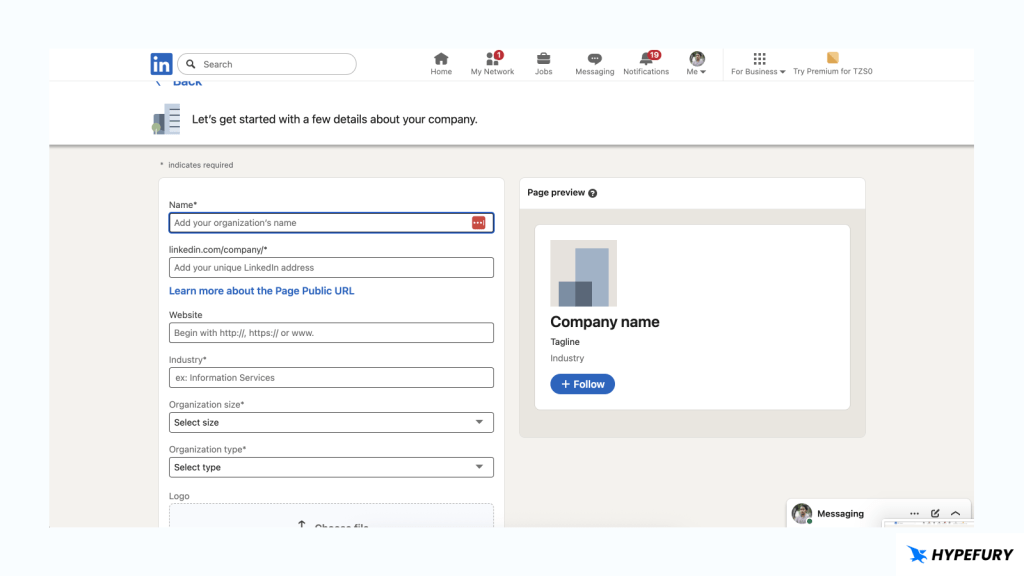
 5. Enter your page details, including Page identity, Company details, and Profile details information.
 6. Click on the verification box to verify that you have the right to act on behalf of a company
7. Click the Create Page button to create your LinkedIn business page
6. Click on the verification box to verify that you have the right to act on behalf of a company
7. Click the Create Page button to create your LinkedIn business page How to Edit the URL of a Company Page
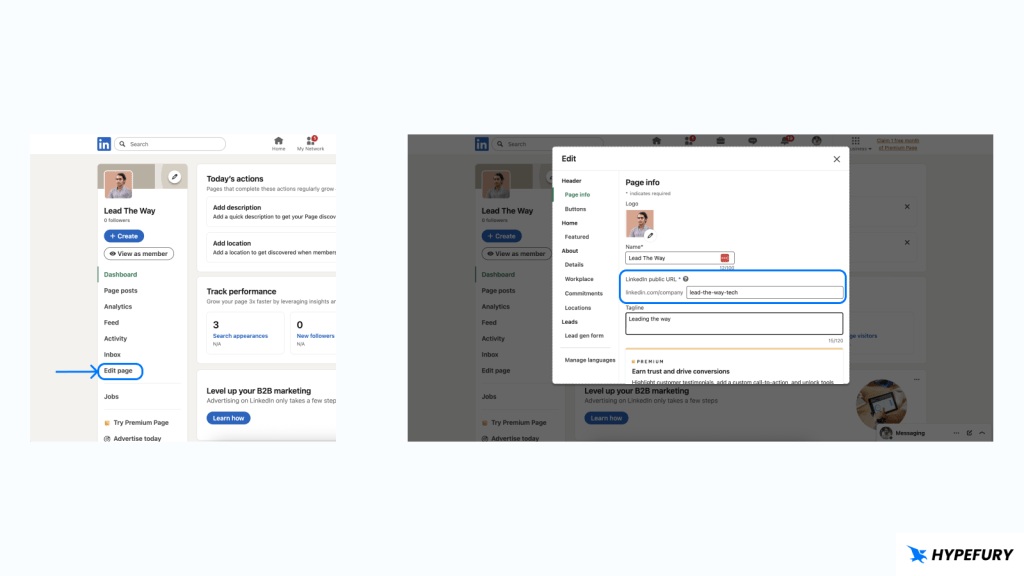
Here’s how you can edit the URL of a Company Page: 1. Click on your profile icon on the top right 2. Under Manage, click on the page that you want to delete. This will take you to the company page’s profile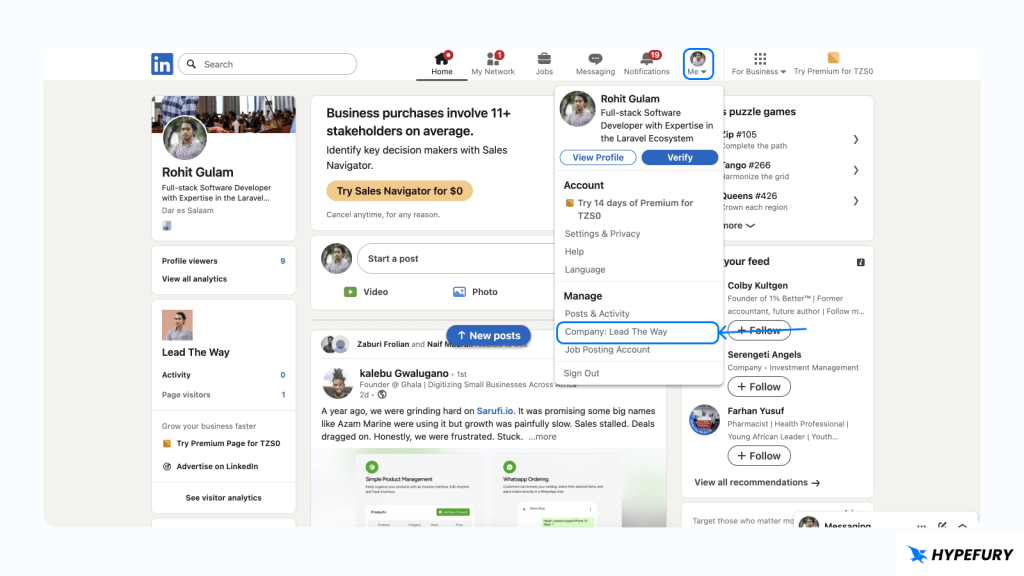 3. Click on Edit Page from the left sidebar
4. Under Page Info, change your URL
3. Click on Edit Page from the left sidebar
4. Under Page Info, change your URL
How to Delete a Company Page
1. Click on your profile icon on the top right 2. Under Manage, click on the page that you want to delete. This will take you to the company page’s profile
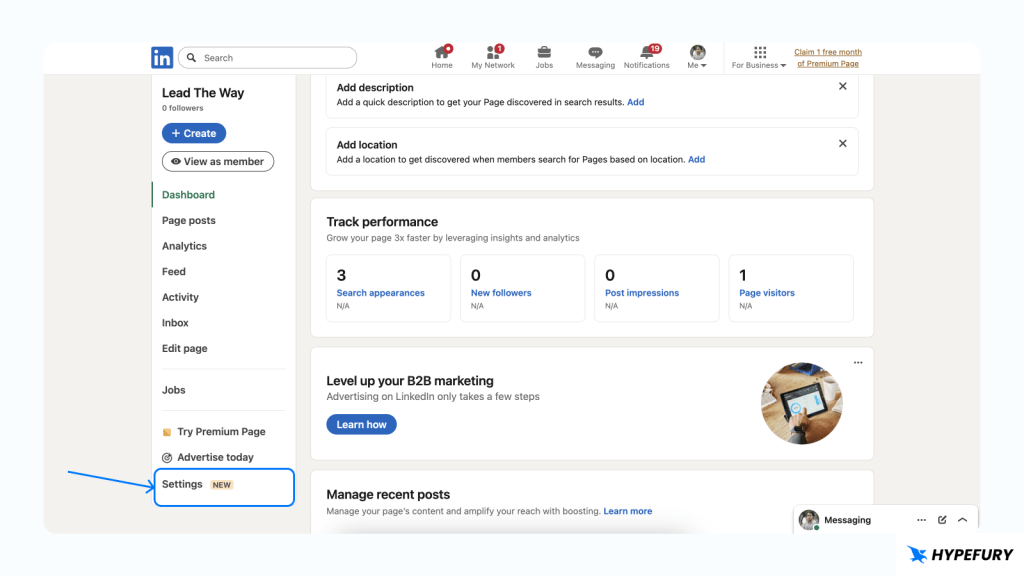
3. Scroll down and click on Settings from the left sidebar
 4. Click on Deactivate Page
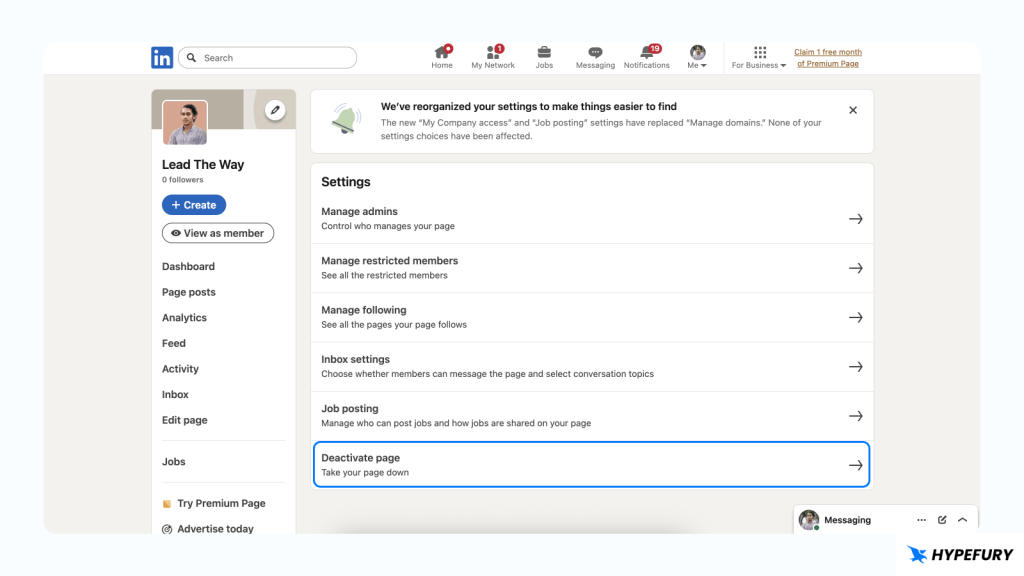 5. You will see a confirmation page, and as soon as you confirm, your page will be deactivated
 Keep in mind that once you deactivate your company page, it will no longer appear in search results, and all employee associations will be removed. So your company will be removed from every employee who puts your page on their work section