Steal What’s Working on 𝕏 (Twitter) in 2025

10 high-performing frameworks for each niche which go viral every time! 

How to Add and Change Your Instagram Reels Thumbnail/Cover Image in 2025

How to Add or Change Instagram Reels Thumbnail/Cover Image

What is an Instagram Reel Thumbnail/Cover Image?

A reel’s thumbnail (or cover image) is the picture that appears on your profile grid and in the reels tab before someone taps your reel to watch it.

It’s the first thing people see when they visit your profile grid or reels tab. And sometimes the thumbnail is also shown on the feed when a reel is loading.

So it’s important to choose a good thumbnail that not only matches the aesthetic of your profile but also one that makes people want to click on your reel and watch it.

If you post a reel without selecting a thumbnail image, it will automatically use the first frame of your video as the thumbnail.

Don’t worry if you have already posted reels in the past and didn’t choose the thumbnails; we’ll take a look at how you can change the thumbnail when posting a new reel, as well as for previously posted reels.

How to Add a Thumbnail/Cover Image to an Instagram Reel Before Posting

Let’s take a look at how you can add a thumbnail when posting your reel.

Step 1: Start creating a reel

Start by clicking the plus icon and uploading your content that you want to share as a Reel.
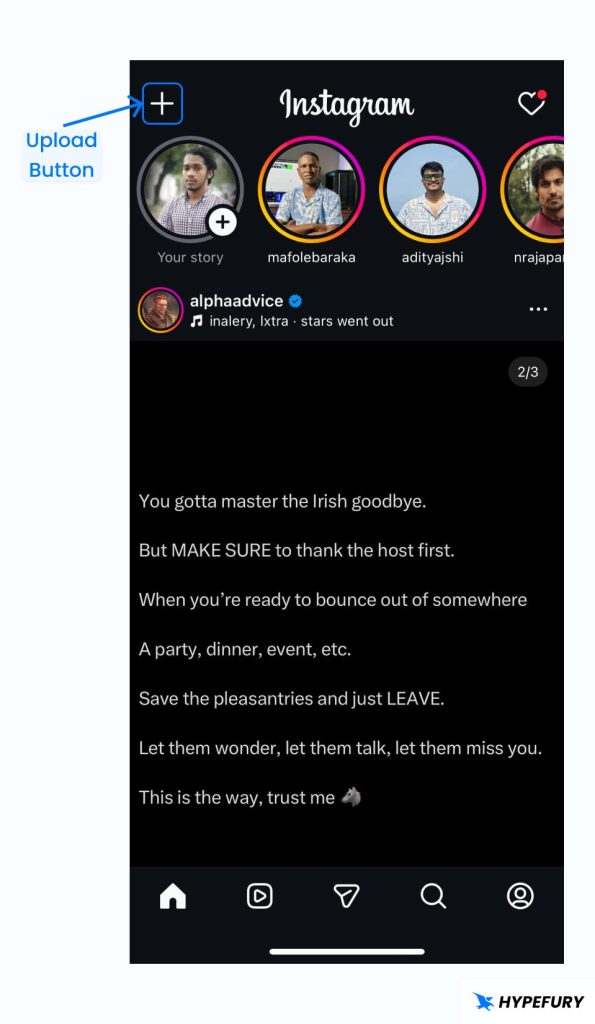
Instagram home upload button

Step 2: Go to the preview screen

Once you’ve chosen your content, click ‘Next‘ to go to the preview screen.
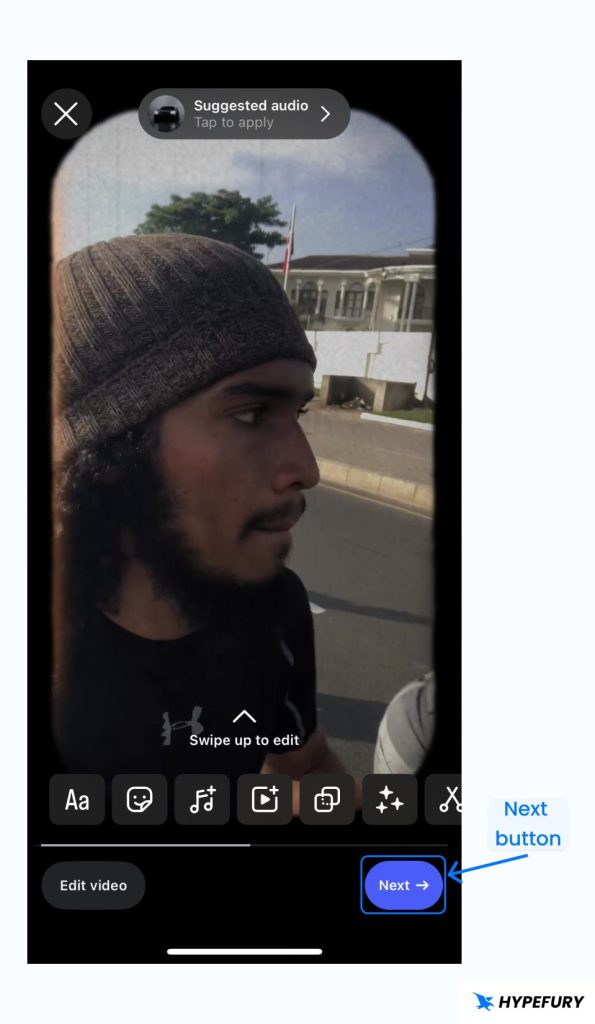
Instagram upload reel

Step 3: Tap “Edit Cover”

On the preview screen, click on the Edit Cover button found on the reel thumbnail just above the caption input.
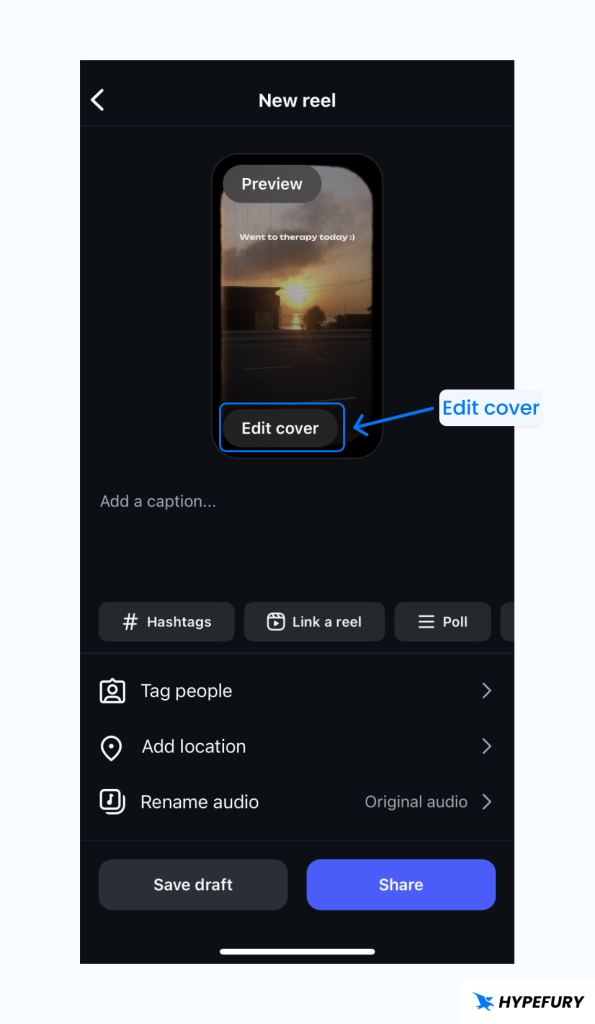
Instagram Reel Edit Cover Image

Step 4: Change the cover image

On the Edit Cover page, you will have two options to add the cover image:

1. You can add the cover image by selecting a frame from the video via the slider
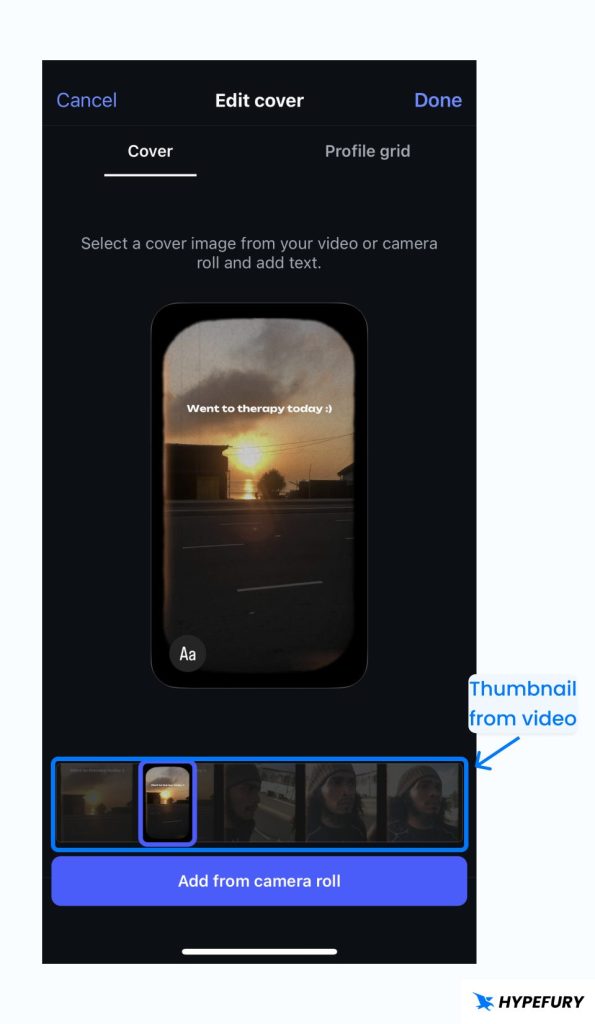
ig reel edit cover from video frames

2. Add an image from the gallery as your cover image
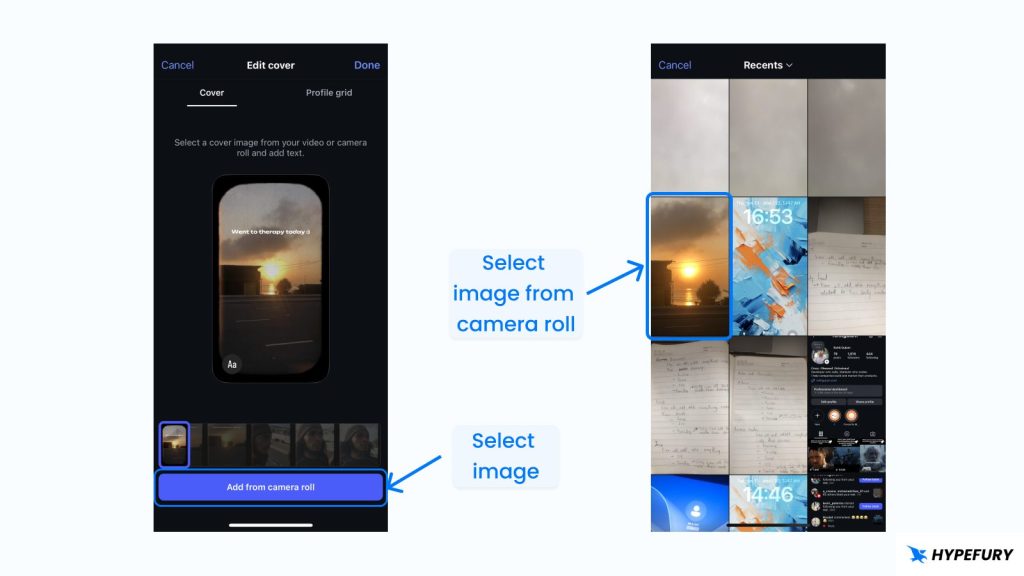
Select Instagram reel cover image from gallery

Step 6: Add text and adjust the photo

Once you’ve chosen your cover image, you can also add text to it.
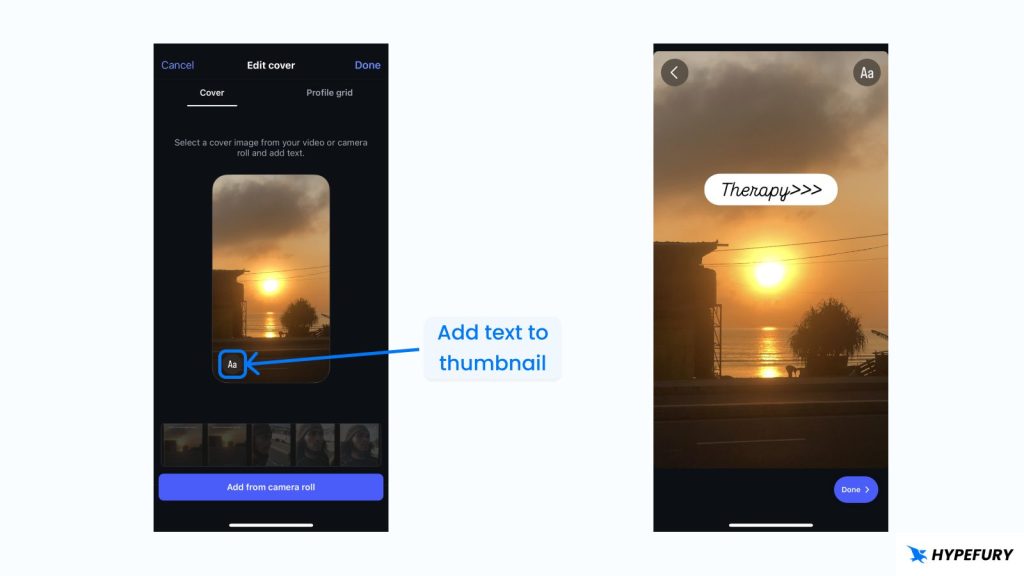
Add text to Instagram reel cover image

Once you’re done, you can click on the Post Grid tab to preview and adjust how the cover image will look on your grid.

Once you’re happy with the changes, click on Done and proceed to adding the caption, hashtags, and posting you reel.

How to Change The Thumbnail/Cover Image of an Instagram Reel After Posting

Luckily, Instagram allows you to update the cover even after your content is live.

Step 1: Open Your Reel

Go to your profile and select the reel.

Step 2: Tap the Three Dots

Click on the three dots icon to open the settings options.
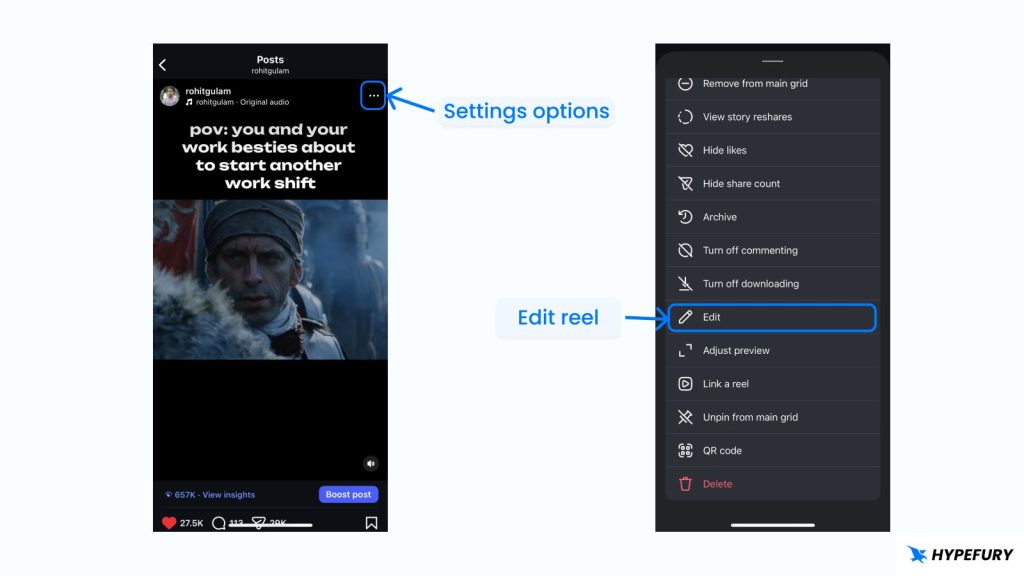
Open reel settings options

Step 3: Tap “Edit”

In the settings options, scroll down until you see the “Edit” option and click on it.

Step 4: Tap on “Cover”

On the edit page, just tap on Cover on your reel thumbnail and proceed to editing the cover of your image.
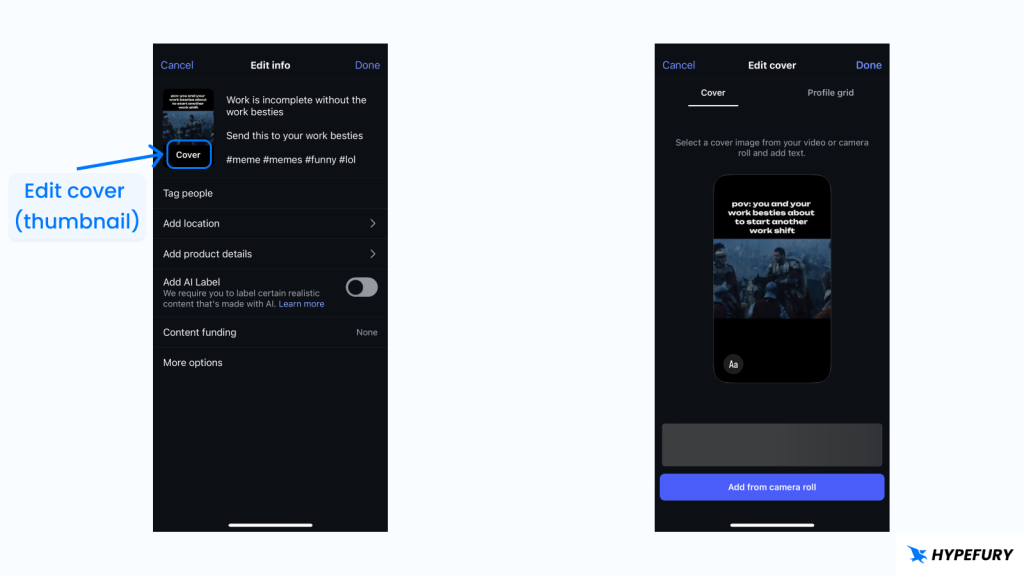
Instagram change thumbnail

What is The Ideal Instagram Reel Thumbnail/Cover Image Size?

The ideal thumbnail/cover image size is 1080 x 1920 pixels, which is the same as the reel size itself.

Ready to Grow Your Audience
& Make Money on Social?

Hypefury makes it easy to create, publish and monetize your content across social media 

Join 3,500+ creators who are using Hypefury to earn online

Grow your audience on social media with Hypefury

Works with

Hypefury makes it easy to grow on on social media by proving you with the features that make it easy to create, distribute and monetize your content

Join 3,500+ creators who are using Hypefury to earn online

How to Add and Change Your Instagram Reels Thumbnail/Cover Image in 2025

How to Add or Change Instagram Reels Thumbnail/Cover Image

What is an Instagram Reel Thumbnail/Cover Image?

A reel’s thumbnail (or cover image) is the picture that appears on your profile grid and in the reels tab before someone taps your reel to watch it.

It’s the first thing people see when they visit your profile grid or reels tab. And sometimes the thumbnail is also shown on the feed when a reel is loading.

So it’s important to choose a good thumbnail that not only matches the aesthetic of your profile but also one that makes people want to click on your reel and watch it.

If you post a reel without selecting a thumbnail image, it will automatically use the first frame of your video as the thumbnail.

Don’t worry if you have already posted reels in the past and didn’t choose the thumbnails; we’ll take a look at how you can change the thumbnail when posting a new reel, as well as for previously posted reels.

How to Add a Thumbnail/Cover Image to an Instagram Reel Before Posting

Let’s take a look at how you can add a thumbnail when posting your reel.

Step 1: Start creating a reel

Start by clicking the plus icon and uploading your content that you want to share as a Reel.

Instagram home upload button

Step 2: Go to the preview screen

Once you’ve chosen your content, click ‘Next‘ to go to the preview screen.

Instagram upload reel

Step 3: Tap “Edit Cover”

On the preview screen, click on the Edit Cover button found on the reel thumbnail just above the caption input.

Instagram Reel Edit Cover Image

Step 4: Change the cover image

On the Edit Cover page, you will have two options to add the cover image:

1. You can add the cover image by selecting a frame from the video via the slider

ig reel edit cover from video frames

2. Add an image from the gallery as your cover image

Select Instagram reel cover image from gallery

Step 6: Add text and adjust the photo

Once you’ve chosen your cover image, you can also add text to it.

Add text to Instagram reel cover image

Once you’re done, you can click on the Post Grid tab to preview and adjust how the cover image will look on your grid.

Once you’re happy with the changes, click on Done and proceed to adding the caption, hashtags, and posting you reel.

How to Change The Thumbnail/Cover Image of an Instagram Reel After Posting

Luckily, Instagram allows you to update the cover even after your content is live.

Step 1: Open Your Reel

Go to your profile and select the reel.

Step 2: Tap the Three Dots

Click on the three dots icon to open the settings options.

Open reel settings options

Step 3: Tap “Edit”

In the settings options, scroll down until you see the “Edit” option and click on it.

Step 4: Tap on “Cover”

On the edit page, just tap on Cover on your reel thumbnail and proceed to editing the cover of your image.

Instagram change thumbnail

What is The Ideal Instagram Reel Thumbnail/Cover Image Size?

The ideal thumbnail/cover image size is 1080 x 1920 pixels, which is the same as the reel size itself.

Ready to Grow Your Audience
& Make Money on Social?

Hypefury makes it easy to create, publish

and monetize your content across social media 

Join 3,500+ creators who are using HypeFury to earn online

You might also like

We won’t send you spam. Unsubscribe at any time